01 / Everyday
Find your flow
Set a 5, 25, or 50-minute session. Pause, reset, and keep the countdown close.
Choose a duration, then start your session.
 Notchest.
A small island for the things you reach for.
Focus, build, and keep your day in flow.
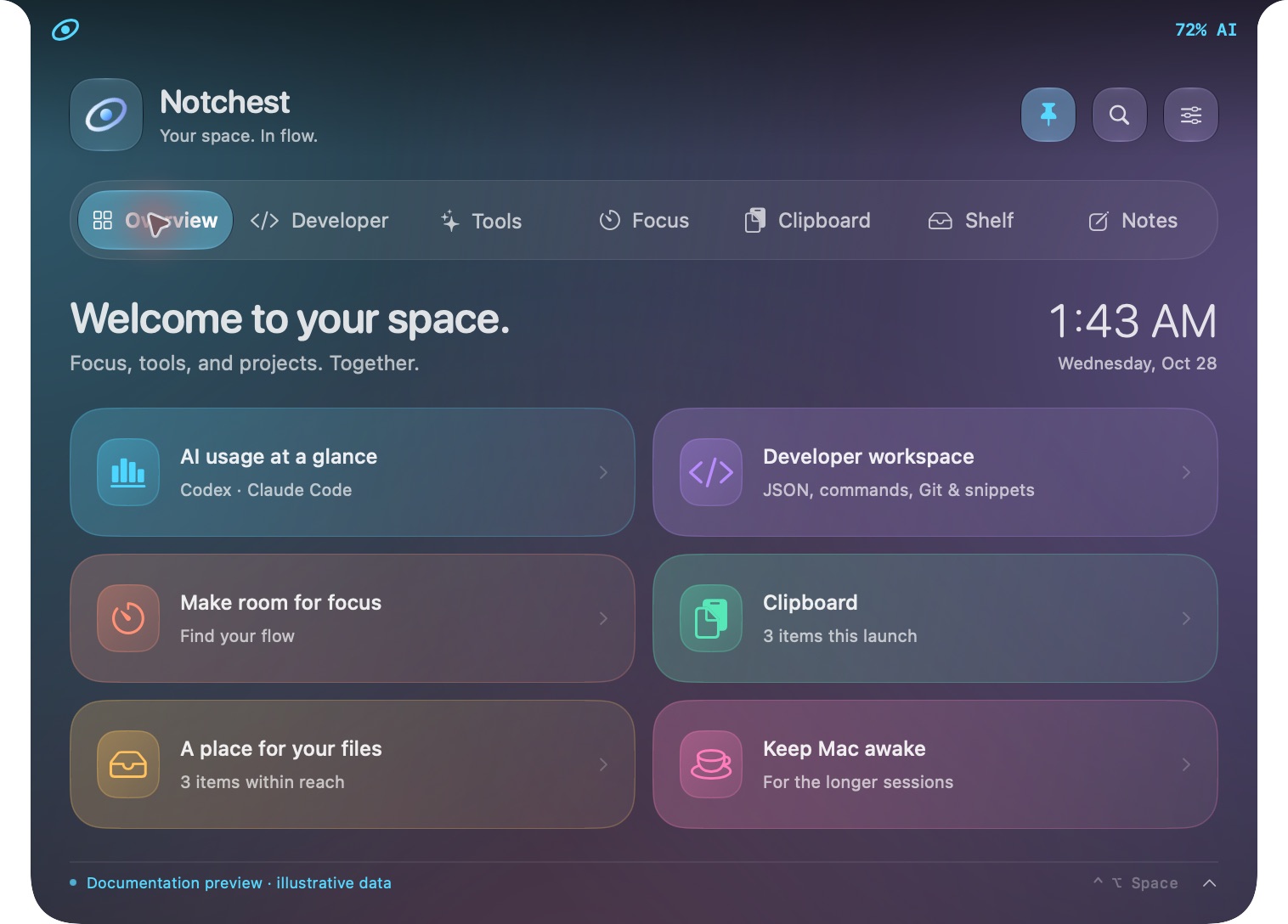
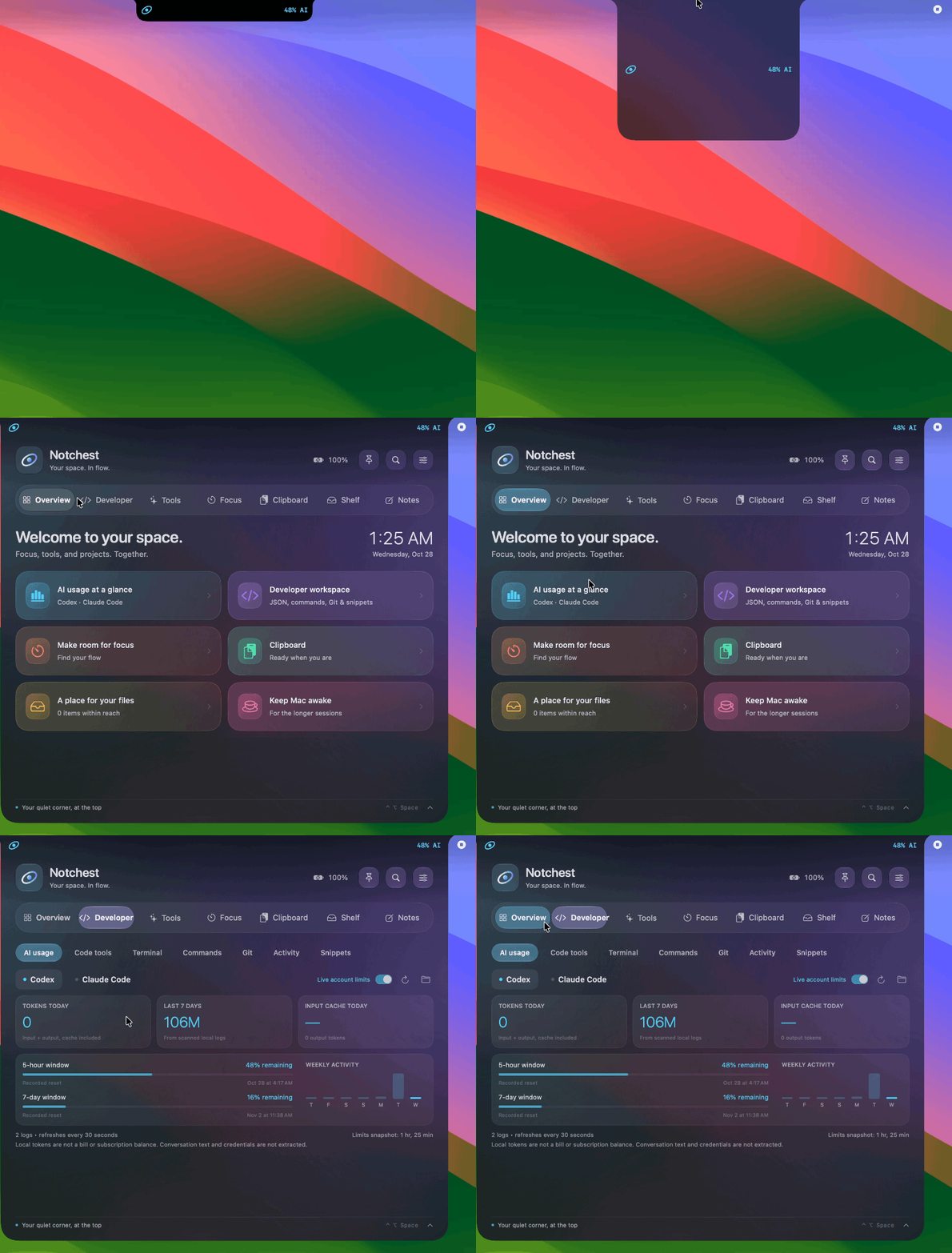
SMALL SPACE. MANY POSSIBILITIES.
Browse 39 features, see the actual interface,
and find out how each one works.
Select any screenshot to zoom in. Captures use illustrative data; setup requirements are explained below.
Set a 5, 25, or 50-minute session. Pause, reset, and keep the countdown close.
Switch to a stopwatch when your work needs an open-ended session.
A quiet scratchpad with local autosave and English or Arabic text.
Opt-in text history with search, copying, and confidential-item filtering.
Keep references to files and folders. Open, reveal, drag out, or share them.
Add app bundles to the shelf and open them with a click.
Keep the Mac awake for a one-hour session, with an automatic stop.
An interactive shell inside the island, backed by SwiftTerm.
Run a command in a chosen folder and read its output and exit code.
Validate, format, sort keys, or minify JSON without leaving your workspace.
Base64 and URL encoding, with reverse transformations for both.
SHA-256, UUID, Unix time, ISO timestamps, and text counters.
Test a regular expression and inspect matches or syntax errors.
Read the branch, changed files, diff summary, and recent commits.
Browse pull requests for a chosen repository via GitHub CLI.
Save the commands and templates you reach for again and again.
An opt-in local API lets your scripts report progress and completion.
Local Codex and Claude CLI usage: daily tokens, weekly activity, and cache reuse.
Request live Codex rate-limit windows and see the fetch time.
Choose a city and check current temperature, conditions, and wind.
Apple Translation inside the island on macOS 15 and later.
Follow selected tickers with an Alpha Vantage key stored in Keychain.
Apple Music or Spotify controls, track details, and artwork when available.
Timed or plain lyrics from LRCLIB when you choose to request them.
CPU, approximate memory use, free disk space, and available sound controls.
Output volume and device selection, plus microphone mute when supported.
Tile a window to the left, right, or available workspace.
Convert selected images to PNG, JPEG, or HEIC where supported.
Take a selected-area screenshot or extract text from a copied image with Vision.
Use the system color picker and copy its HEX value.
Compress a file or folder, or extract a ZIP into a new folder.
A local calculator for arithmetic, parentheses, and precedence.
Discover and run the Apple Shortcuts already on your Mac.
Open a local mirror and stop capture when it closes.
Read upcoming calendar events and create reminders when you submit them.
Optional notices for new download files, removable drives, and Caps Lock.
Tune collapsed and expanded size, accent colors, motion, and the chosen display.
English by default, with an optional right-to-left Arabic interface.
Choose whether Notchest starts at login and opens on hover.
No features found. Try another word.
A FEW SECONDS FROM HERE
Download the disk image, drag Notchest into Applications, and make the island yours.
Get Notchest 0.6.0Development release · not yet Developer-ID signed or notarized. Release notes · First-launch help
A DMG for the familiar Mac experience, or a portable ZIP from Releases.
Choose your display, island size, colors, and preferred language.
Optional services and macOS permissions are explained in the feature guide.
GOOD TO KNOW
This development release uses ad-hoc signing and has not been Developer-ID signed or notarized by Apple. If you downloaded it from the official GitHub release and trust that source, you can approve this app individually.
The packaged build is for Apple Silicon. Source targets macOS 13+, with Apple Translation on 15+ and Liquid Glass on 26+. Earlier-system and Intel validation remain on the roadmap.
No. Notes, focus, code transforms, and other local tools work without one. GitHub, account limits, stocks, music, and other connected tools have their own setup requirements.
Yes. They are captures of the running SwiftUI/AppKit interface in an isolated documentation build. Example notes, usage, system readings, track details, and task events are labeled sample data. No personal accounts, camera, or private clipboard were used.
Absolutely. The project is MIT licensed. Use Xcode 26+ or Swift tools with the macOS 26 SDK, then follow the repository build instructions. Build instructions ↗